Photography · Exposure and layering
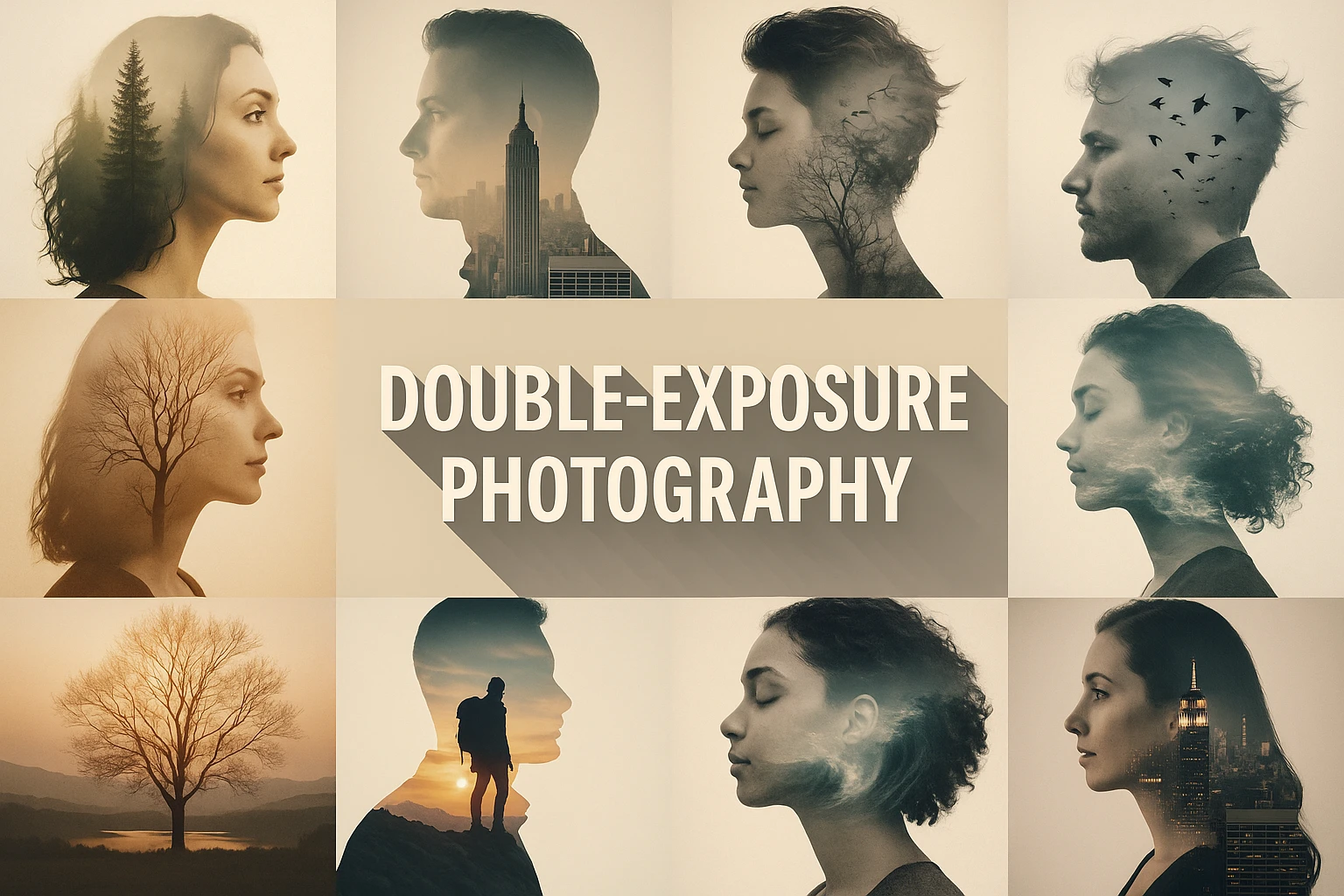
Double exposure lets two images share a frame. A profile can open into a forest; a city can appear inside an everyday object. The strongest results depend on a relationship between the layers, not simply on making both of them visible at once.
A closer look
Look for a clear outer shape, a secondary pattern and places where each image can breathe. Bright and dark areas determine what remains legible. If every part competes equally, the result often becomes visual noise rather than a meaningful combination.
Exposure versus a digital effect
In film photography, double exposure combines two exposures on the same image area. Adobe’s tutorial distinguishes this from a digital double-exposure effect, in which separate photographs are combined in editing software. The results can resemble one another, but the procedures are different. A caption should describe the process actually used rather than claiming that every layered portrait was made in a camera.
This technique sits within the wider family of image combination, but it is helpful to keep the terms precise. A composite may contain many selected elements with solid boundaries. A double-exposure effect often emphasizes overlap and partial visibility between two images. Neither approach requires a silhouette, although a strong silhouette is a convenient starting point.
Give the layers different jobs
Choose a first image with a shape that reads clearly at small size. Give the second image a different role: a texture, a memory-like setting or a contrasting scale. Before adjusting opacity, explain their connection in a sentence. If the sentence is only that both images are beautiful, look for a more specific relationship.
Try an empty ceramic jug and a branching tree. The jug supplies the outer boundary; the branches suggest something growing beyond it. Keep part of the rim visible so the container still reads as a container. This is an original exercise in visual association, not a claim that those objects were present in an existing artwork.
Edit for legibility
Adobe’s layer-and-mask workflow provides a reversible way to control which parts of an image show through. Work locally rather than lowering the opacity of the entire layer until everything looks equally faded. Compare the result at thumbnail size and at full size. At the smaller scale, judge the idea; at the larger scale, inspect transitions around eyes, edges and branches. A convincing digital effect need not imitate film defects, and a generated result should be labeled as an illustration rather than an actual double-exposed negative.
Pocket-sized facts
Film double exposure and a digital double-exposure effect can look similar while using different methods.
Masks allow selective visibility; opacity alone changes the whole layer.
The prompt workshop
Original creative exercises. These prompts create new illustrations, not documentary evidence.
A readable silhouette
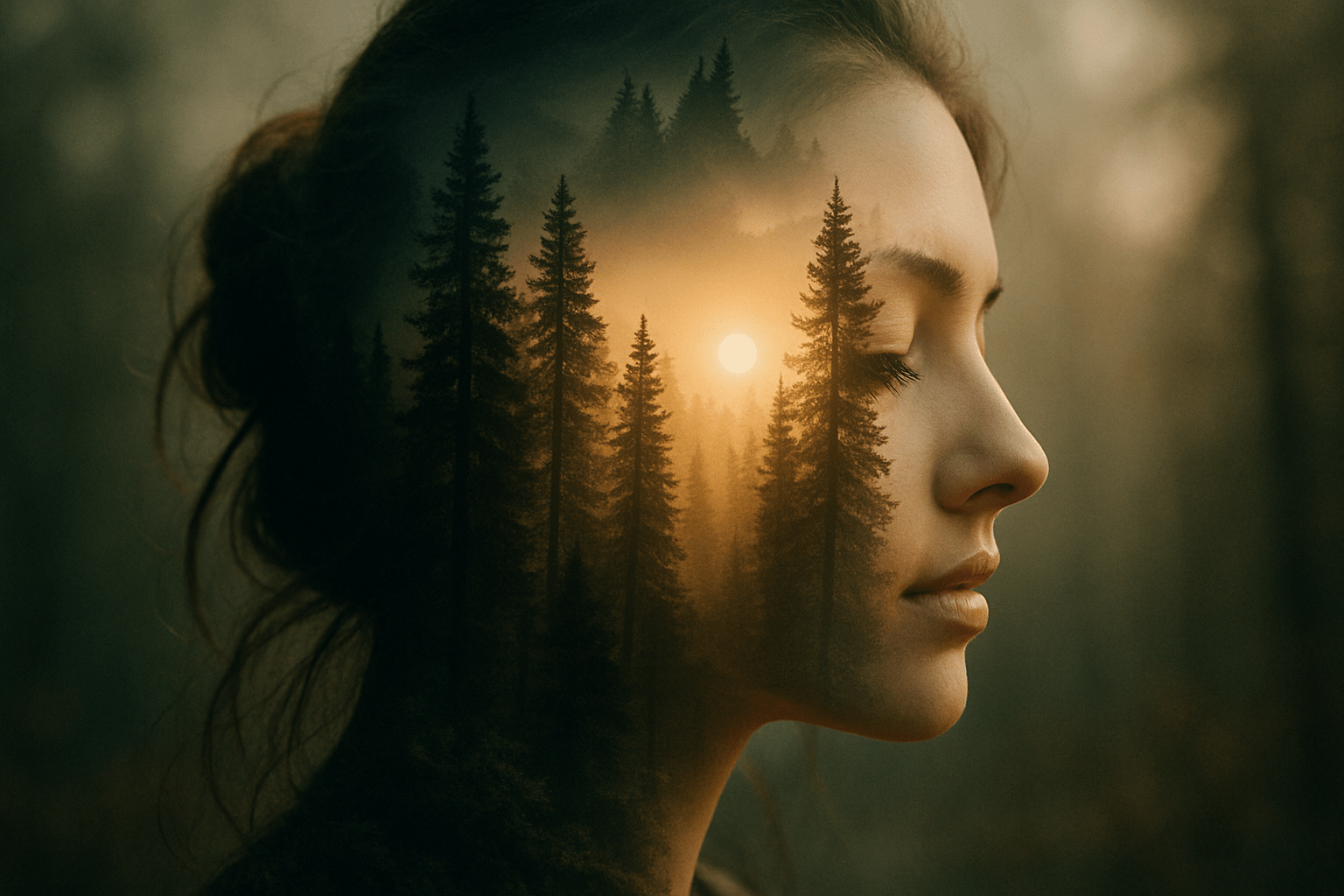
An original double-exposure-style illustration combining the side profile of a fictional adult with a sparse pine forest, trees visible within the darker silhouette, a clean pale background, preserve the nose and forehead contours, restrained green and amber colors. A generated visual effect, not an analogue negative.
A place held in an object
Create a poetic double-exposure-style image of a simple ceramic jug containing the branching shapes of an orchard, strong outer contour, visible rim and handle, quiet cream background, carefully balanced dark branches and pale interior spaces, no extra floating objects.
Two rhythms overlap
An experimental layered image combining a solitary adult dancer’s curved arm with the sweep of a coastal road, monochrome with a single muted blue accent, generous empty areas, clear gesture and controlled overlap. Make an original metaphor for movement rather than copying a known photograph.
A small poetic detour
A forest turns inward.
One face holds another place;
The branches breathe light.
A smile from the studio
The camera saw double. The editor asked both versions to stay on separate layers.
Look closer
Explore the image gallery
Select an image to enlarge it. Browse with the arrows, and press Escape to return.
Your next inspiration
Discover another art style
Follow a visual thread to the next subject.
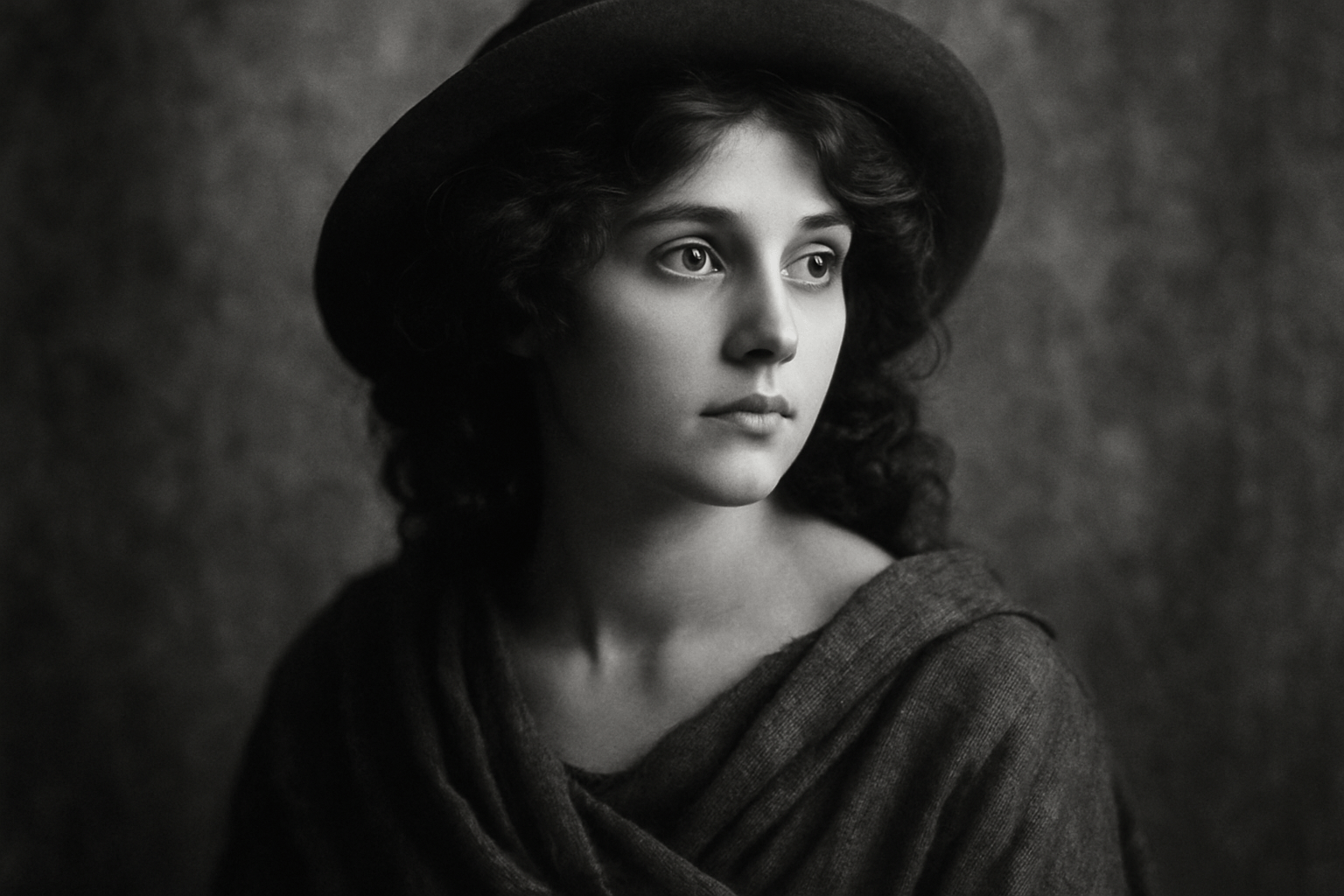
Historic Black and White Photography
An old photograph is more than a modern image with the color removed.